> ## Documentation Index
> Fetch the complete documentation index at: https://docs.pipecat.ai/llms.txt
> Use this file to discover all available pages before exploring further.
# Telnyx Websocket Transport
> Using Telnyx's WebSocket Transport for your Pipecat Cloud agents
This guide covers Pipecat Cloud-specific configuration for Telnyx WebSocket
integration. For a complete guide including dial-in, dial-out, custom
parameters, and advanced features, see the [Telnyx WebSocket Integration
guide](/pipecat/telephony/telnyx-websockets).
Native support for Telnyx's WebSocket Transport with Pipecat Cloud allows you to connect your AI agents with Telnyx's voice infrastructure. This integration enables your Pipecat bots to handle real phone calls using Telnyx's WebSocket streaming.
## How It Works
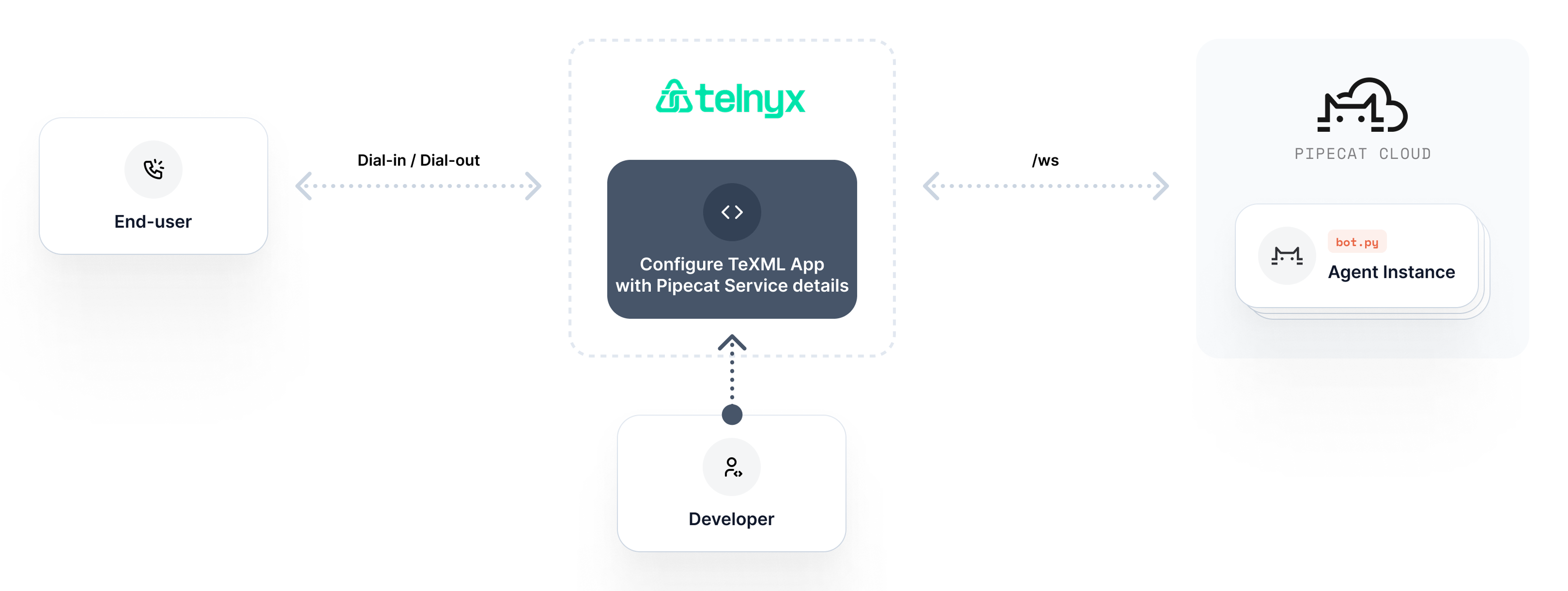
Pipecat Cloud implements Telnyx's bidirectional [Media Streaming protocol](https://developers.telnyx.com/docs/voice/programmable-voice/media-streaming). While audio streams flow through WebSockets, the call session is controlled by updating the Telnyx Extensible Markup Language (TeXML) associated with each call's unique identifier (`call_control_id`).
When Pipecat Cloud receives an incoming WebSocket connection from Telnyx, it processes the `connected` and `start` messages to initialize a new bot instance. All WebSocket messages are forwarded to your bot, including any custom parameters set in your TeXML. This allows your bot to leverage Telnyx's Call Control API for advanced call control - such as recording conversations, transferring to human agents, or implementing complex call flows.
 ## Prerequisites
Before setting up this integration, ensure you have:
* A Telnyx account with voice capabilities
* A Pipecat Cloud account with a Telnyx WebSocket-compatible bot
A ready-to-build example of a Telnyx websockets bot with complete source code is available in the [pipecat-examples repo](https://github.com/pipecat-ai/pipecat-examples/tree/main/telnyx-chatbot).
## Pipecat Cloud Configuration
### 1. Get Your Organization Name
Retrieve your Pipecat Cloud organization name using the Pipecat CLI:
```bash theme={null}
$ pipecat cloud organizations list
```
This command will output a list of organizations associated with your account. For example:
```bash theme={null}
Organization Name
──────────────────────────────────────
Default Workspace three-random-words-randomnumber (active)
```
### 2. Create a TeXML Application
[Purchase a phone number from Telnyx](https://telnyx.com/resources/purchase-a-phone-number-with-telnyx) if you haven't already, then create a [TeXML Application](https://developers.telnyx.com/docs/voice/programmable-voice/texml-setup) with the following configuration:
```xml theme={null}
```
Replace the placeholder values:
* `AGENT_NAME` with your deployed bot's name (e.g., `my-first-agent`)
* `ORGANIZATION_NAME` with your organization name from step 1 (e.g., `three-random-words-randomnumber`)
For example, if your agent is named "customer-support" and your organization is "industrious-purple-cat-12345", your serviceHost would be: `customer-support.industrious-purple-cat-12345`
**Using Regional Endpoints**
If you deployed your agent to a specific region, use the regional WebSocket endpoint to connect:
`wss://{region}.api.pipecat.daily.co/ws/telnyx?serviceHost=AGENT_NAME.ORGANIZATION_NAME`
For example, for Europe: `wss://eu-central.api.pipecat.daily.co/ws/telnyx?serviceHost=my-agent.my-org`
Learn more about [regional endpoints](/pipecat-cloud/guides/regions#regional-websocket-endpoints).
### 3. Assign TeXML Application to Your Phone Number
1. Navigate to Voice → Programmable Voice in your Telnyx dashboard
2. In the TeXML Applications tab, select the pencil icon for the TeXML Application you created in step 2
3. In the Numbers tab, select Assign numbers
4. Select the number you would like to assign the TeXML Application to
5. Click Save to apply your changes
## Testing Your Integration
To test your integration, simply dial your Telnyx phone number from any phone. The call will connect to your Pipecat Cloud bot, which will respond according to your bot's configuration.
## Next Steps
For complete implementation details including dial-out, caller personalization, custom parameters, and advanced call control features, see the [Telnyx WebSocket Integration guide](/pipecat/telephony/telnyx-websockets).
## Prerequisites
Before setting up this integration, ensure you have:
* A Telnyx account with voice capabilities
* A Pipecat Cloud account with a Telnyx WebSocket-compatible bot
A ready-to-build example of a Telnyx websockets bot with complete source code is available in the [pipecat-examples repo](https://github.com/pipecat-ai/pipecat-examples/tree/main/telnyx-chatbot).
## Pipecat Cloud Configuration
### 1. Get Your Organization Name
Retrieve your Pipecat Cloud organization name using the Pipecat CLI:
```bash theme={null}
$ pipecat cloud organizations list
```
This command will output a list of organizations associated with your account. For example:
```bash theme={null}
Organization Name
──────────────────────────────────────
Default Workspace three-random-words-randomnumber (active)
```
### 2. Create a TeXML Application
[Purchase a phone number from Telnyx](https://telnyx.com/resources/purchase-a-phone-number-with-telnyx) if you haven't already, then create a [TeXML Application](https://developers.telnyx.com/docs/voice/programmable-voice/texml-setup) with the following configuration:
```xml theme={null}
```
Replace the placeholder values:
* `AGENT_NAME` with your deployed bot's name (e.g., `my-first-agent`)
* `ORGANIZATION_NAME` with your organization name from step 1 (e.g., `three-random-words-randomnumber`)
For example, if your agent is named "customer-support" and your organization is "industrious-purple-cat-12345", your serviceHost would be: `customer-support.industrious-purple-cat-12345`
**Using Regional Endpoints**
If you deployed your agent to a specific region, use the regional WebSocket endpoint to connect:
`wss://{region}.api.pipecat.daily.co/ws/telnyx?serviceHost=AGENT_NAME.ORGANIZATION_NAME`
For example, for Europe: `wss://eu-central.api.pipecat.daily.co/ws/telnyx?serviceHost=my-agent.my-org`
Learn more about [regional endpoints](/pipecat-cloud/guides/regions#regional-websocket-endpoints).
### 3. Assign TeXML Application to Your Phone Number
1. Navigate to Voice → Programmable Voice in your Telnyx dashboard
2. In the TeXML Applications tab, select the pencil icon for the TeXML Application you created in step 2
3. In the Numbers tab, select Assign numbers
4. Select the number you would like to assign the TeXML Application to
5. Click Save to apply your changes
## Testing Your Integration
To test your integration, simply dial your Telnyx phone number from any phone. The call will connect to your Pipecat Cloud bot, which will respond according to your bot's configuration.
## Next Steps
For complete implementation details including dial-out, caller personalization, custom parameters, and advanced call control features, see the [Telnyx WebSocket Integration guide](/pipecat/telephony/telnyx-websockets).