> ## Documentation Index
> Fetch the complete documentation index at: https://docs.pipecat.ai/llms.txt
> Use this file to discover all available pages before exploring further.
# Twilio Websocket Transport
> Using Twilio's WebSocket Transport for your Pipecat Cloud agents
This guide covers Pipecat Cloud-specific configuration for Twilio WebSocket
integration. For a complete guide including dial-in, dial-out, custom
parameters, and advanced features, see the [Twilio WebSocket Integration
guide](/pipecat/telephony/twilio-websockets).
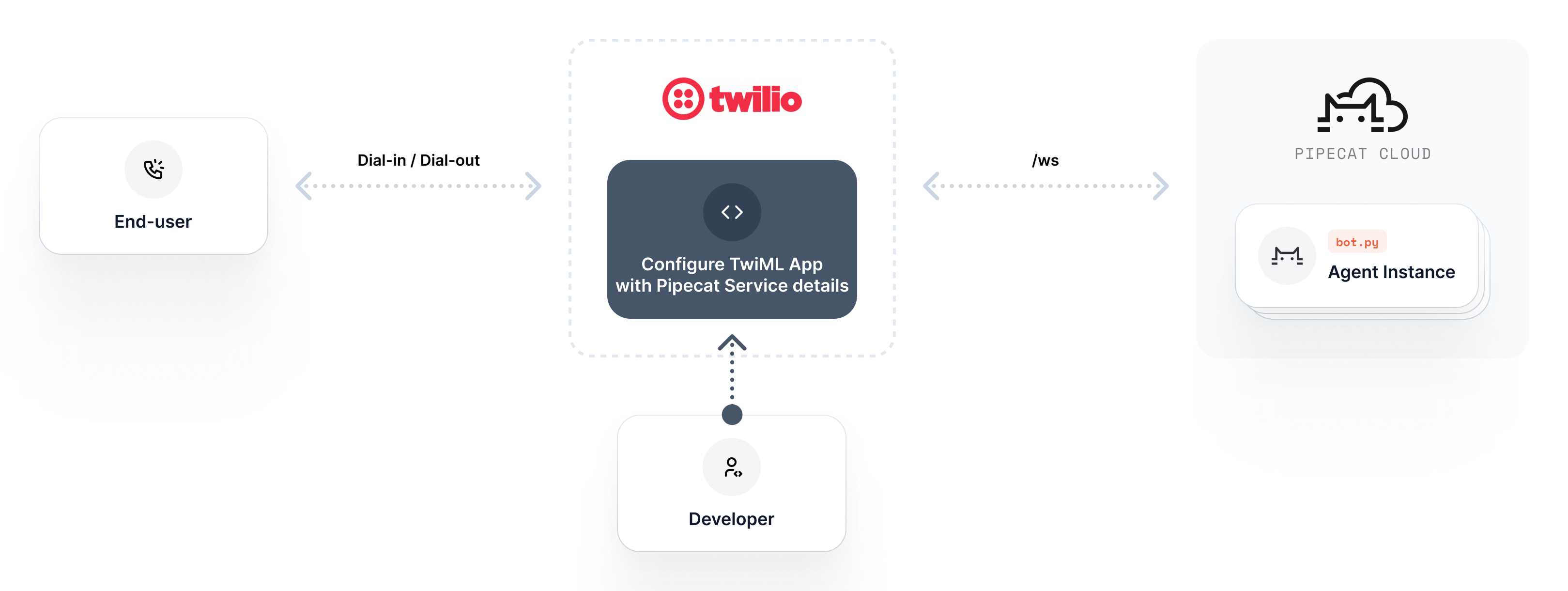
Native support for Twilio's WebSocket Transport with Pipecat Cloud allows you to connect your AI agents with Twilio's voice infrastructure. This integration enables your Pipecat bots to handle real phone calls using Twilio's Websockets.
## How It Works
Pipecat Cloud implements Twilio's bidirectional [Media Streams protocol](https://www.twilio.com/docs/voice/media-streams/websocket-messages). While audio streams flow through WebSockets, the call session is controlled by updating the Twilio Markup Language (TwiML) associated with each call's unique identifier (`CallSid`).
When Pipecat Cloud receives an incoming WebSocket connection from Twilio, it processes the `Connected` and `Start` messages to initialize a new bot instance. All WebSocket messages are forwarded to your bot, including any custom parameters set in your TwiML. This allows your bot to leverage Twilio's REST API for advanced call control - such as recording conversations, transferring to human agents, or implementing complex call flows.
 ## Prerequisites
Before setting up this integration, ensure you have:
* A Twilio account with voice capabilities
* A Pipecat Cloud account with a Twilio Websockets-compatible bot
A ready-to-build example of a Twilio websockets bot with complete source code is available in the [pipecat-examples repo](https://github.com/pipecat-ai/pipecat-examples/tree/main/twilio-chatbot).
## Pipecat Cloud Configuration
### 1. Get Your Organization Name
Retrieve your Pipecat Cloud organization name using the Pipecat CLI:
```bash theme={null}
$ pipecat cloud organizations list
```
This command will output a list of organizations associated with your account. For example:
```bash theme={null}
Organization Name
──────────────────────────────────────
Default Workspace three-random-words-randomnumber (active)
```
### 2. Create a TwiML Bin
[Purchase a phone number from Twilio](https://help.twilio.com/articles/223135247-How-to-Search-for-and-Buy-a-Twilio-Phone-Number-from-Console) if you haven't already, then create a [TwiML Bin](https://help.twilio.com/articles/360043489573-Getting-started-with-TwiML-Bins) with the following configuration:
```xml theme={null}
```
Replace the placeholder values:
* `AGENT_NAME` with your deployed bot's name (e.g., `my-first-agent`)
* `ORGANIZATION_NAME` with your organization name from step 1 (e.g., `three-random-words-randomnumber`)
For example, if your agent is named "customer-support" and your organization is "industrious-purple-cat-12345", your value would be: `customer-support.industrious-purple-cat-12345`
**Using Regional Endpoints**
If you deployed your agent to a specific region, use the regional WebSocket endpoint to connect:
`wss://{region}.api.pipecat.daily.co/ws/twilio`
For example, for Europe: `wss://eu-central.api.pipecat.daily.co/ws/twilio`
Learn more about [regional endpoints](/pipecat-cloud/guides/regions#regional-websocket-endpoints).
### 3. Assign TwiML Bin to Your Phone Number
1. Navigate to the Phone Numbers section in your Twilio dashboard
2. Select your phone number from the list
3. In the Configure tab, under "Voice Configuration" section, find "A call comes in"
4. Set this dropdown to "TwiML Bin"
5. Select the TwiML Bin you created in step 2
6. Click Save to apply your changes
## Testing Your Integration
To test your integration, simply dial your Twilio phone number from any phone. The call will connect to your Pipecat Cloud bot, which will respond according to your bot's configuration.
## Next Steps
For complete implementation details including dial-out, custom parameters, caller personalization, and advanced call control features, see the [Twilio WebSocket Integration guide](/pipecat/telephony/twilio-websockets).
## Prerequisites
Before setting up this integration, ensure you have:
* A Twilio account with voice capabilities
* A Pipecat Cloud account with a Twilio Websockets-compatible bot
A ready-to-build example of a Twilio websockets bot with complete source code is available in the [pipecat-examples repo](https://github.com/pipecat-ai/pipecat-examples/tree/main/twilio-chatbot).
## Pipecat Cloud Configuration
### 1. Get Your Organization Name
Retrieve your Pipecat Cloud organization name using the Pipecat CLI:
```bash theme={null}
$ pipecat cloud organizations list
```
This command will output a list of organizations associated with your account. For example:
```bash theme={null}
Organization Name
──────────────────────────────────────
Default Workspace three-random-words-randomnumber (active)
```
### 2. Create a TwiML Bin
[Purchase a phone number from Twilio](https://help.twilio.com/articles/223135247-How-to-Search-for-and-Buy-a-Twilio-Phone-Number-from-Console) if you haven't already, then create a [TwiML Bin](https://help.twilio.com/articles/360043489573-Getting-started-with-TwiML-Bins) with the following configuration:
```xml theme={null}
```
Replace the placeholder values:
* `AGENT_NAME` with your deployed bot's name (e.g., `my-first-agent`)
* `ORGANIZATION_NAME` with your organization name from step 1 (e.g., `three-random-words-randomnumber`)
For example, if your agent is named "customer-support" and your organization is "industrious-purple-cat-12345", your value would be: `customer-support.industrious-purple-cat-12345`
**Using Regional Endpoints**
If you deployed your agent to a specific region, use the regional WebSocket endpoint to connect:
`wss://{region}.api.pipecat.daily.co/ws/twilio`
For example, for Europe: `wss://eu-central.api.pipecat.daily.co/ws/twilio`
Learn more about [regional endpoints](/pipecat-cloud/guides/regions#regional-websocket-endpoints).
### 3. Assign TwiML Bin to Your Phone Number
1. Navigate to the Phone Numbers section in your Twilio dashboard
2. Select your phone number from the list
3. In the Configure tab, under "Voice Configuration" section, find "A call comes in"
4. Set this dropdown to "TwiML Bin"
5. Select the TwiML Bin you created in step 2
6. Click Save to apply your changes
## Testing Your Integration
To test your integration, simply dial your Twilio phone number from any phone. The call will connect to your Pipecat Cloud bot, which will respond according to your bot's configuration.
## Next Steps
For complete implementation details including dial-out, custom parameters, caller personalization, and advanced call control features, see the [Twilio WebSocket Integration guide](/pipecat/telephony/twilio-websockets).