> ## Documentation Index
> Fetch the complete documentation index at: https://docs.pipecat.ai/llms.txt
> Use this file to discover all available pages before exploring further.
# Modal
> Deploy Pipecat applications to Modal
[Modal](https://www.modal.com) is well-suited for Pipecat deployments because it handles container orchestration, scaling, and cold starts efficiently. This makes it a good choice for production Pipecat bots that need reliable performance.
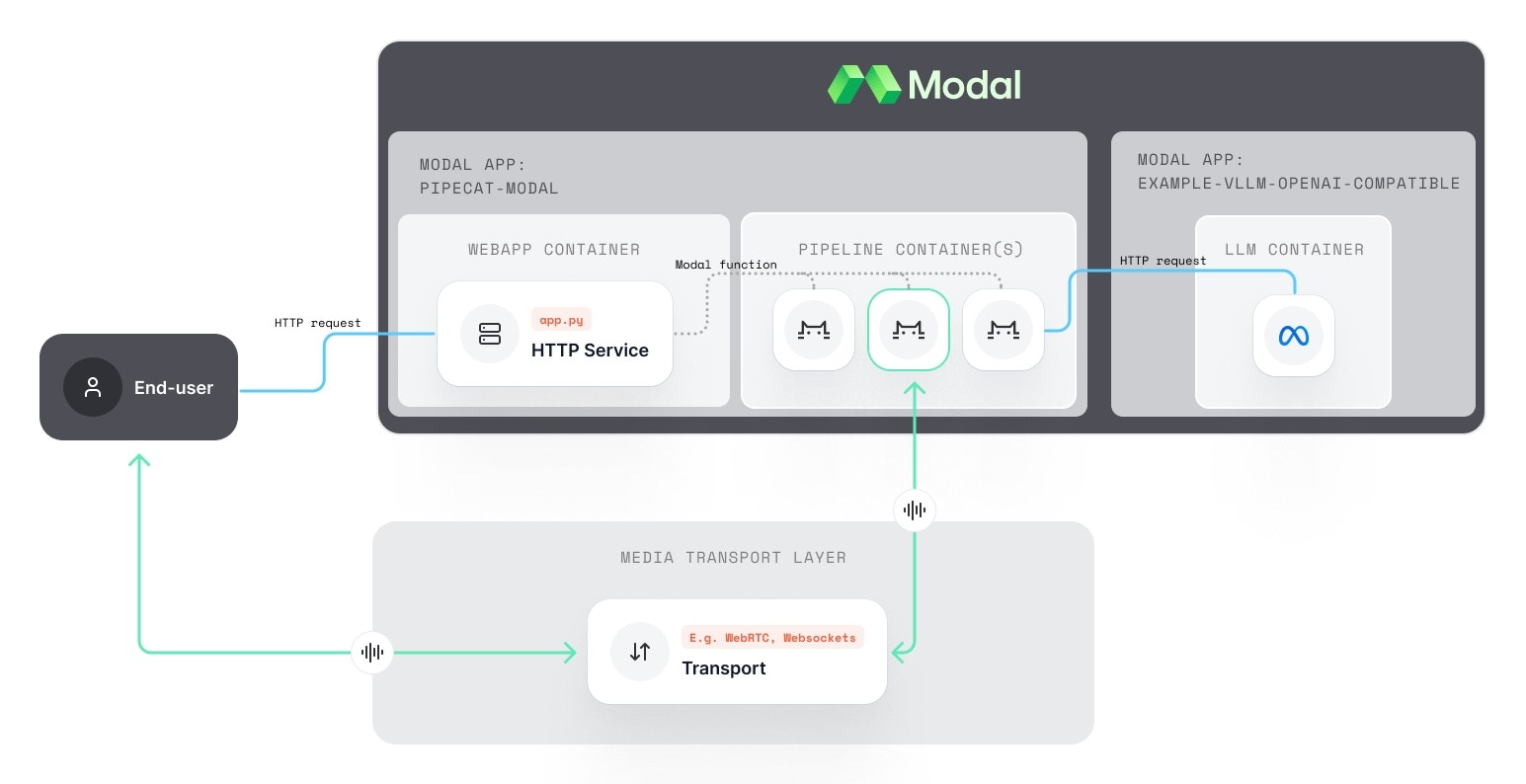
This guide walks through the Modal example included in the Pipecat repository. Architecturally it sits between the [VM-per-session](../patterns/vm-per-session) and [managed-runtime](../patterns/managed-runtime) patterns: a Modal Function plays the role of the per-session VM, but Modal manages the container lifecycle and image distribution for you.
View the complete Modal deployment example in our GitHub repository
 ## Install the Modal CLI
Follow Modal's official instructions for creating an account and setting up
the CLI
## Deploy a self-serve LLM
1. Deploy Modal's OpenAI-compatible LLM service:
```bash theme={null}
git clone https://github.com/modal-labs/modal-examples
cd modal-examples
modal deploy 06_gpu_and_ml/llm-serving/vllm_inference.py
```
Refer to Modal's guide and example for [Deploying an OpenAI-compatible LLM
service with vLLM](https://modal.com/docs/examples/vllm_inference) for more
details.
2. Take note of the endpoint URL from the previous step, which will look like:
```
https://{your-workspace}--example-vllm-openai-compatible-serve.modal.run
```
You'll need this for the `bot_vllm.py` file in the next section.
The default Modal LLM example uses Llama-3.1 and will shut down after 15
minutes of inactivity. Cold starts take 5-10 minutes. To prepare the service,
we recommend visiting the `/docs` endpoint (`https://--example-vllm-openai-compatible-serve.modal.run/docs`)
for your deployed LLM and wait for it to fully load before connecting your client.
## Deploy FastAPI App and Pipecat pipeline to Modal
1. Setup environment variables:
```bash theme={null}
cd server
cp .env.example .env
# Modify .env to provide your service API Keys
```
Alternatively, you can configure your Modal app to use
[secrets](https://modal.com/docs/guide/secrets).
2. Update the `modal_url` in `server/src/bot_vllm.py` to point to the URL you received from the self-serve LLM deployment in the previous step.
3. From within the `server` directory, test the app locally:
```bash theme={null}
modal serve app.py
```
4. Deploy to production:
```bash theme={null}
modal deploy app.py
```
5. Note the endpoint URL produced from this deployment. It will look like:
```bash theme={null}
https://{your-workspace}--pipecat-modal-fastapi-app.modal.run
```
You'll need this URL for the client's `app.js` configuration mentioned in its README.
## Launch your bots on Modal
### Option 1: Direct Link
Simply click on the URL displayed after running the server or deploy step to launch an agent and be redirected to a Daily room to talk with the launched bot. This will use the OpenAI pipeline.
### Option 2: Connect via an RTVI Client
Follow the instructions provided in the [client folder's README](https://github.com/pipecat-ai/pipecat-examples/tree/main/deployment/modal-example/client/javascript) for building and running a custom client that connects to your Modal endpoint. The provided client includes a dropdown for choosing which bot pipeline to run.
## Navigating your LLM, server, and Pipecat logs
On your [Modal dashboard](https://modal.com/apps), you should have two Apps listed under Live Apps:
1. `example-vllm-openai-compatible`: This App contains the containers and logs used to run your self-hosted LLM. There will be just one App Function listed: `serve`. Click on this function to view logs for your LLM.
2. `pipecat-modal`: This App contains the containers and logs used to run your `connect` endpoints and Pipecat pipelines. It will list two App Functions:
1. `fastapi_app`: This function is running the endpoints that your client will interact with and initiate starting a new pipeline (`/`, `/connect`, `/status`). Click on this function to see logs for each endpoint hit.
2. `bot_runner`: This function handles launching and running a bot pipeline. Click on this function to get a list of all pipeline runs and access each run's logs.
## Modal & Pipecat Tips
* In most other Pipecat examples, we use `Popen` to launch the pipeline process from the `/connect` endpoint. In this example, we use a Modal function instead. This allows us to run the pipelines using a separately defined Modal image as well as run each pipeline in an isolated container.
* For the FastAPI and most common Pipecat Pipeline containers, a default `debian_slim` CPU-only should be all that's required to run. GPU containers are needed for self-hosted services.
* To minimize cold starts of the pipeline and reduce latency for users, set `min_containers=1` on the Modal Function that launches the pipeline to ensure at least one warm instance of your function is always available.
## Next steps
For next steps on running a self-hosted LLM and reducing latency, check out
all of Modal's LLM examples
## Install the Modal CLI
Follow Modal's official instructions for creating an account and setting up
the CLI
## Deploy a self-serve LLM
1. Deploy Modal's OpenAI-compatible LLM service:
```bash theme={null}
git clone https://github.com/modal-labs/modal-examples
cd modal-examples
modal deploy 06_gpu_and_ml/llm-serving/vllm_inference.py
```
Refer to Modal's guide and example for [Deploying an OpenAI-compatible LLM
service with vLLM](https://modal.com/docs/examples/vllm_inference) for more
details.
2. Take note of the endpoint URL from the previous step, which will look like:
```
https://{your-workspace}--example-vllm-openai-compatible-serve.modal.run
```
You'll need this for the `bot_vllm.py` file in the next section.
The default Modal LLM example uses Llama-3.1 and will shut down after 15
minutes of inactivity. Cold starts take 5-10 minutes. To prepare the service,
we recommend visiting the `/docs` endpoint (`https://--example-vllm-openai-compatible-serve.modal.run/docs`)
for your deployed LLM and wait for it to fully load before connecting your client.
## Deploy FastAPI App and Pipecat pipeline to Modal
1. Setup environment variables:
```bash theme={null}
cd server
cp .env.example .env
# Modify .env to provide your service API Keys
```
Alternatively, you can configure your Modal app to use
[secrets](https://modal.com/docs/guide/secrets).
2. Update the `modal_url` in `server/src/bot_vllm.py` to point to the URL you received from the self-serve LLM deployment in the previous step.
3. From within the `server` directory, test the app locally:
```bash theme={null}
modal serve app.py
```
4. Deploy to production:
```bash theme={null}
modal deploy app.py
```
5. Note the endpoint URL produced from this deployment. It will look like:
```bash theme={null}
https://{your-workspace}--pipecat-modal-fastapi-app.modal.run
```
You'll need this URL for the client's `app.js` configuration mentioned in its README.
## Launch your bots on Modal
### Option 1: Direct Link
Simply click on the URL displayed after running the server or deploy step to launch an agent and be redirected to a Daily room to talk with the launched bot. This will use the OpenAI pipeline.
### Option 2: Connect via an RTVI Client
Follow the instructions provided in the [client folder's README](https://github.com/pipecat-ai/pipecat-examples/tree/main/deployment/modal-example/client/javascript) for building and running a custom client that connects to your Modal endpoint. The provided client includes a dropdown for choosing which bot pipeline to run.
## Navigating your LLM, server, and Pipecat logs
On your [Modal dashboard](https://modal.com/apps), you should have two Apps listed under Live Apps:
1. `example-vllm-openai-compatible`: This App contains the containers and logs used to run your self-hosted LLM. There will be just one App Function listed: `serve`. Click on this function to view logs for your LLM.
2. `pipecat-modal`: This App contains the containers and logs used to run your `connect` endpoints and Pipecat pipelines. It will list two App Functions:
1. `fastapi_app`: This function is running the endpoints that your client will interact with and initiate starting a new pipeline (`/`, `/connect`, `/status`). Click on this function to see logs for each endpoint hit.
2. `bot_runner`: This function handles launching and running a bot pipeline. Click on this function to get a list of all pipeline runs and access each run's logs.
## Modal & Pipecat Tips
* In most other Pipecat examples, we use `Popen` to launch the pipeline process from the `/connect` endpoint. In this example, we use a Modal function instead. This allows us to run the pipelines using a separately defined Modal image as well as run each pipeline in an isolated container.
* For the FastAPI and most common Pipecat Pipeline containers, a default `debian_slim` CPU-only should be all that's required to run. GPU containers are needed for self-hosted services.
* To minimize cold starts of the pipeline and reduce latency for users, set `min_containers=1` on the Modal Function that launches the pipeline to ensure at least one warm instance of your function is always available.
## Next steps
For next steps on running a self-hosted LLM and reducing latency, check out
all of Modal's LLM examples